How to Build an Automated KPI Reporting System with n8n
A step-by-step technical guide from the Aai Labs team, including node configurations, code snippets, and the complete workflow JSON.
Overview
This guide walks you through building an automated KPI reporting workflow that:
- Runs on a schedule (e.g., every Monday at 8 AM)
- Pulls data from Google Analytics 4 and Amplitude
- Logs everything to a Google Sheet
- Sends a Slack notification with the weekly metrics
- Handles errors gracefully and alerts you when something breaks
Background
Every Monday morning, someone on our team had to manually pull data from three different platforms, Google Analytics, Amplitude, and our internal systems, copy numbers into a spreadsheet, and send a Slack message to leadership. It took about 60 minutes, assuming nothing went wrong.
Things always went wrong. Someone would forget. The numbers wouldn't match. A formula would break. This guide documents the automated solution we built to replace that manual process entirely.
Prerequisites
Before starting, make sure you have:
- A self-hosted n8n instance or n8n cloud account
- A Google Cloud project with the Analytics Data API enabled
- An Amplitude account with API access
- A Slack workspace with permission to add apps
- A Google Sheet to store your KPI data
Workflow Architecture
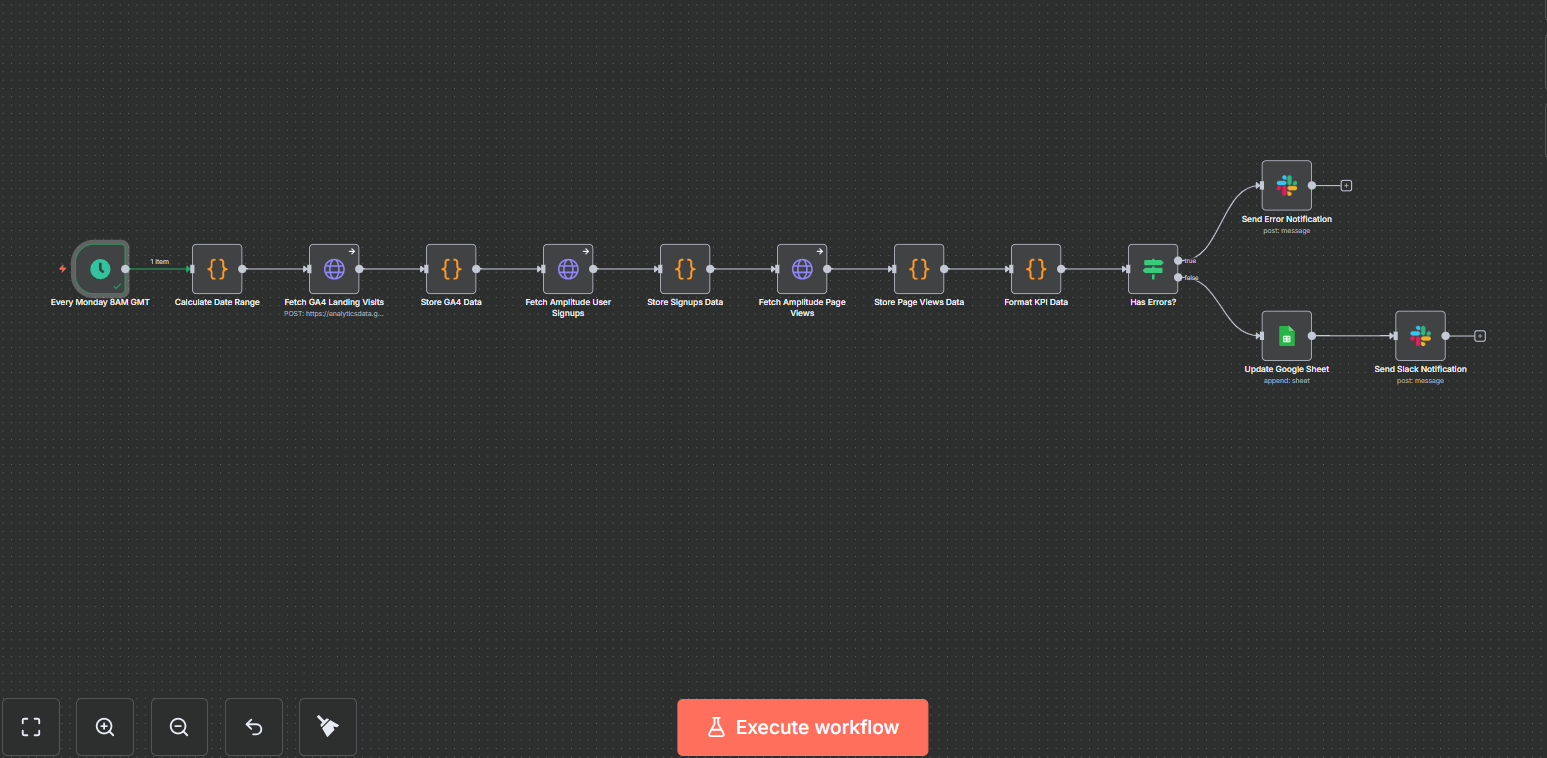
The workflow consists of 12 nodes connected in sequence:
Schedule Trigger → Calculate Date Range → Fetch GA4 → Store GA4 Data → Fetch Amplitude Signups → Store Signups Data → Fetch Amplitude Page Views → Store Page Views Data → Format KPI Data → Error Check → [Success Path: Google Sheets → Slack] or [Error Path: Error Notification]
The "Store" nodes accumulate data as it flows through, allowing us to handle errors gracefully without losing partial results.
Setting Up Credentials
Google Analytics 4 (Service Account)
We use a Service Account instead of OAuth to avoid refresh token expiration issues.
- Go to Google Cloud Console → IAM & Admin → Service Accounts
- Click "Create Service Account" and name it (e.g., "n8n-ga4-automation")
- Go to Keys tab → Add Key → Create new key → JSON
- In GA4 Admin → Property Access Management, add the service account email as a Viewer
- In n8n, create a "Google Service Account" credential with the client_email and private_key from the JSON file
- Enable "Set up for use in HTTP Request node" and add scope:
https://www.googleapis.com/auth/analytics.readonlyAmplitude
- Go to Amplitude → Settings → Projects → Your Project → API Keys
- Copy your API Key and Secret Key
- In n8n, create an "HTTP Basic Auth" credential with API Key as username and Secret Key as password
Slack
- Create a Slack app at api.slack.com/apps
- Add OAuth scopes:
chat:write,users:read - Install to your workspace and copy the Bot User OAuth Token
- In n8n, create a "Slack OAuth2" credential
Node Configurations
1. Schedule Trigger
Type: Schedule Trigger
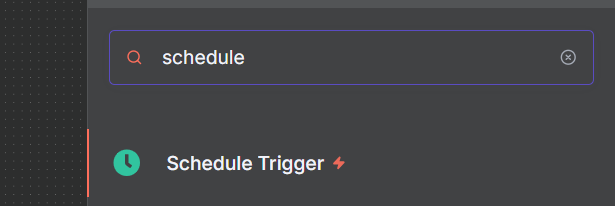
Purpose: Kicks off the workflow at a set time
Configuration:
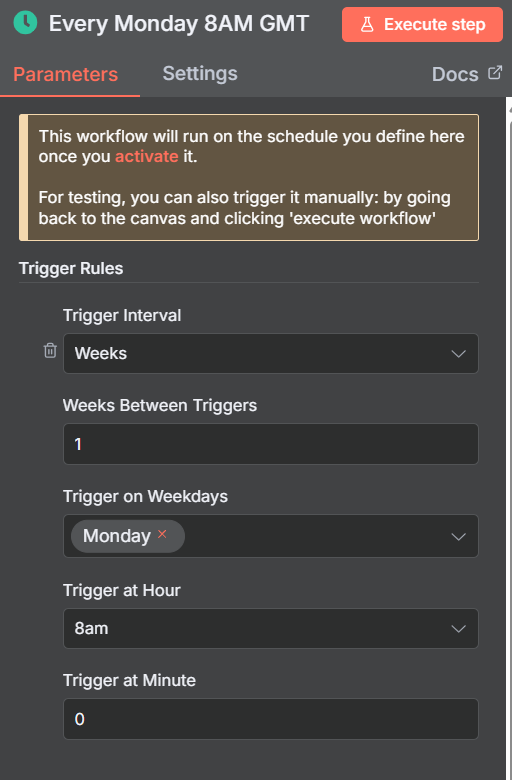
- Trigger Interval: Weeks
- Week Day: Monday
- Hour: 8, Minute: 0 (8:00 AM)
2. Calculate Date Range
Type: Code (JavaScript)
Purpose: Calculates the last 7 days in formats required by each API
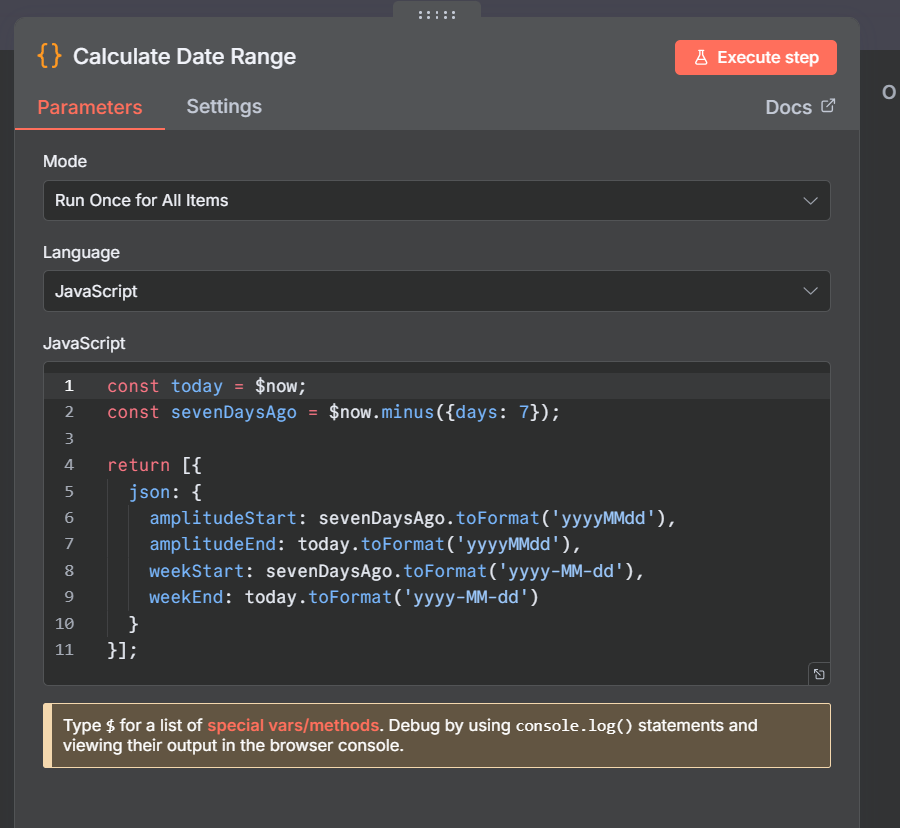
const today = $now;
const sevenDaysAgo = $now.minus({days: 7});

return [{
  json: {
    amplitudeStart: sevenDaysAgo.toFormat('yyyyMMdd'),
    amplitudeEnd: today.toFormat('yyyyMMdd'),
    weekStart: sevenDaysAgo.toFormat('yyyy-MM-dd'),
    weekEnd: today.toFormat('yyyy-MM-dd')
  }
}];
Note: GA4 accepts relative dates like '7daysAgo' directly, but Amplitude requires 'YYYYMMDD' format. We output both.
3. Fetch GA4 Landing Visits
Type: HTTP Request
Purpose: Fetches session count from Google Analytics 4
Configuration:
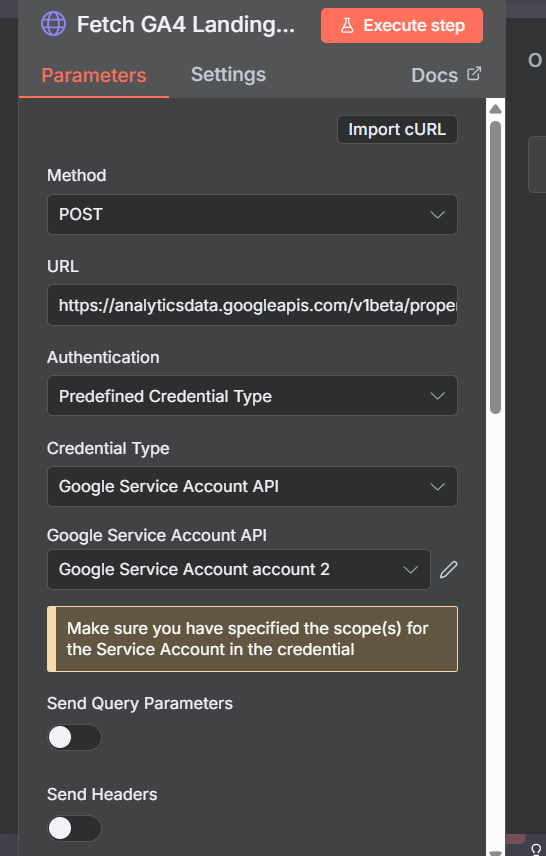
Method: POST
URL: https://analyticsdata.googleapis.com/v1beta/properties/YOUR_PROPERTY_ID:runReport
Authentication: Predefined Credential Type → Google Service Account
Body Content Type: JSON
On Error: Continue (using 'Never Error' option)
{
  "dateRanges": [{
    "startDate": "7daysAgo",
    "endDate": "today"
  }],
  "metrics": [{"name": "sessions"}
Finding your Property ID: In GA4, go to Admin → Property Settings. The Property ID is a 9-digit number.
4. Store GA4 Data
Type: Code (JavaScript)
Purpose: Captures the GA4 response and checks for errors
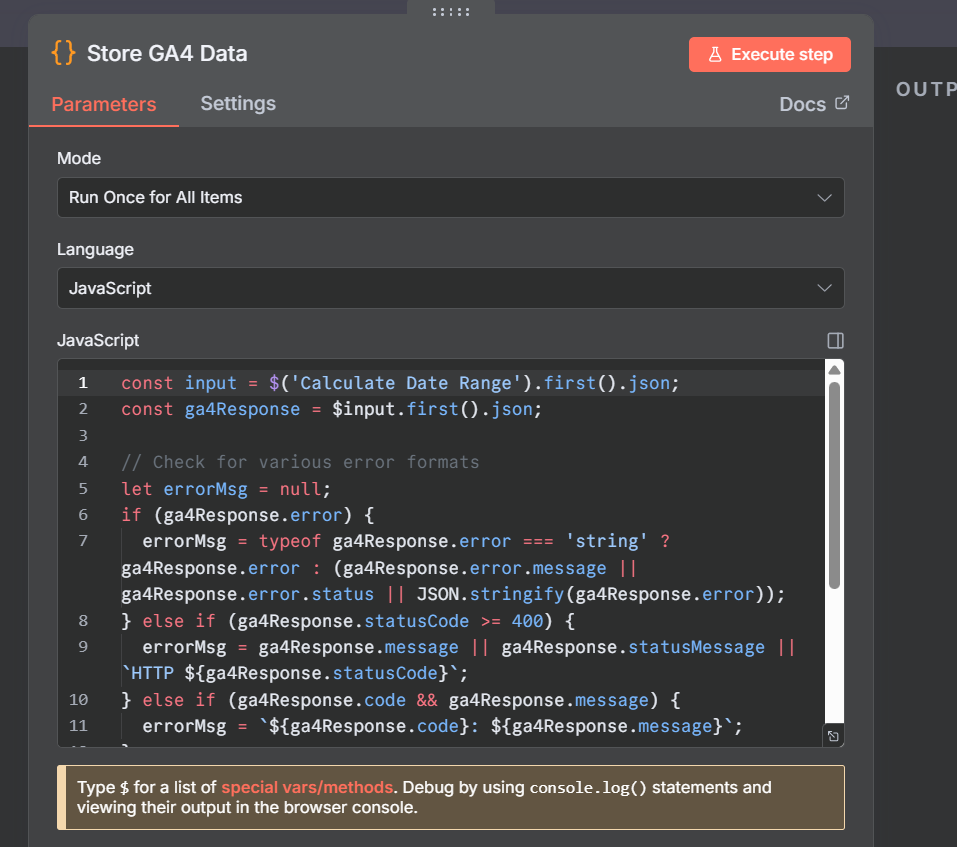
const input = $('Calculate Date Range').first().json;
const ga4Response = $input.first().json;

let errorMsg = null;
if (ga4Response.error) {
  errorMsg = typeof ga4Response.error === 'string'
    ? ga4Response.error
    : (ga4Response.error.message || JSON.stringify(ga4Response.error));
}

return [{
  json: { ...input, ga4Data: ga4Response, ga4Error: errorMsg }
}];
5. Fetch Amplitude User Signups
Type: HTTP Request
Purpose: Fetches unique users who triggered the 'UserSignedUp' event
Configuration:
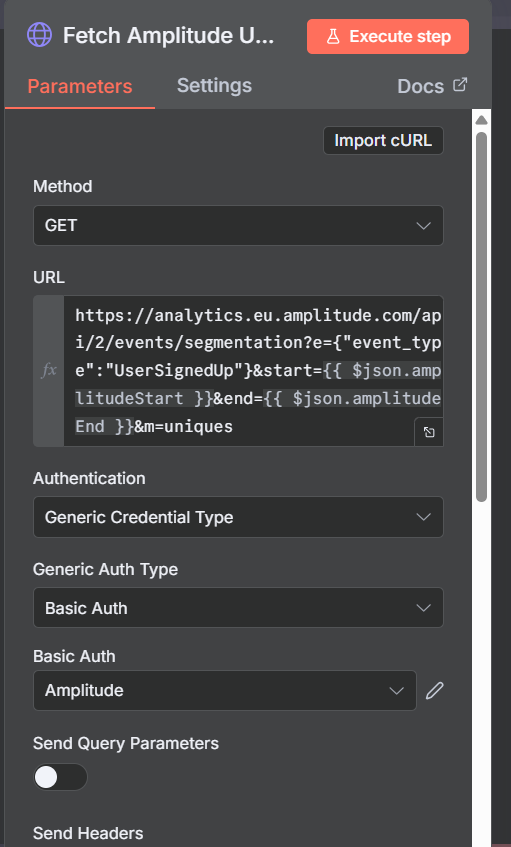
- Method: GET
- Authentication: HTTP Basic Auth (your Amplitude credential)
- On Error: Continue
URL (expression):
https://analytics.eu.amplitude.com/api/2/events/segmentation?e={"event_type":"UserSignedUp"}&start={{ $json.amplitudeStart }}&end={{ $json.amplitudeEnd }}&m=uniques
Note: Use analytics.amplitude.com for US data center or analytics.eu.amplitude.com for EU. Change 'UserSignedUp' to match your actual event name.
6. Store Signups Data
Type: Code (JavaScript)
Purpose: Same pattern as Store GA4 Data, captures the response, checks for errors, and passes accumulated data to the next node.
7. Fetch Amplitude Page Views
Type: HTTP Request
https://analytics.eu.amplitude.com/api/2/events/segmentation?e={"event_type":"[Amplitude] Page Viewed"}&start={{ $json.amplitudeStart }}&end={{ $json.amplitudeEnd }}&m=uniques
Same configuration as the Signups node, just a different event type.
8. Store Page Views Data
Type: Code (JavaScript)
Purpose: Same pattern, captures response and accumulates data.
9. Format KPI Data
Type: Code (JavaScript)
Purpose: Extracts the actual metrics from API responses and formats them for output
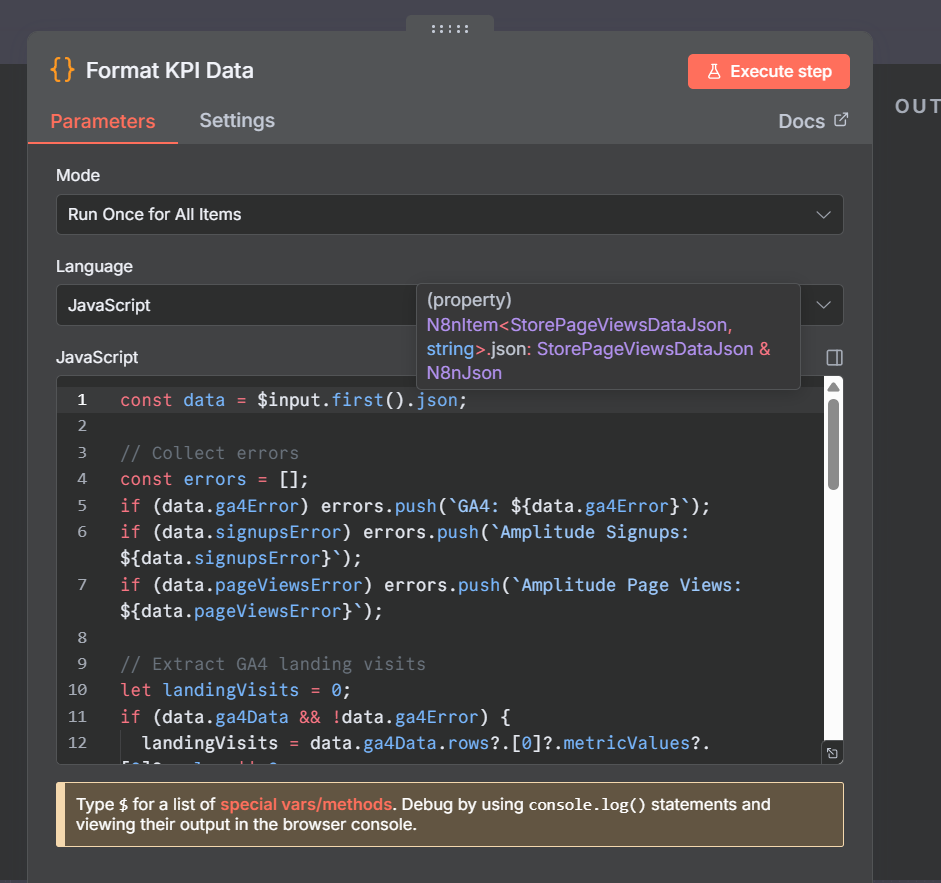
// GA4 data extraction
const landingVisits = data.ga4Data.rows?.[0]?.metricValues?.[0]?.value || 0;

// Amplitude data extraction (handles both response formats)
let userSignUps = 0;
if (data.signupsData?.data?.seriesCollapsed?.[0]?.[0]?.value) {
  userSignUps = data.signupsData.data.seriesCollapsed[0][0].value;
} else if (data.signupsData?.data?.series?.[0]) {
  userSignUps = data.signupsData.data.series[0].reduce((sum, v) => sum + v, 0);
}
Why two Amplitude formats? Amplitude returns 'seriesCollapsed' for aggregated uniques or 'series' for daily breakdowns depending on the query. We handle both.
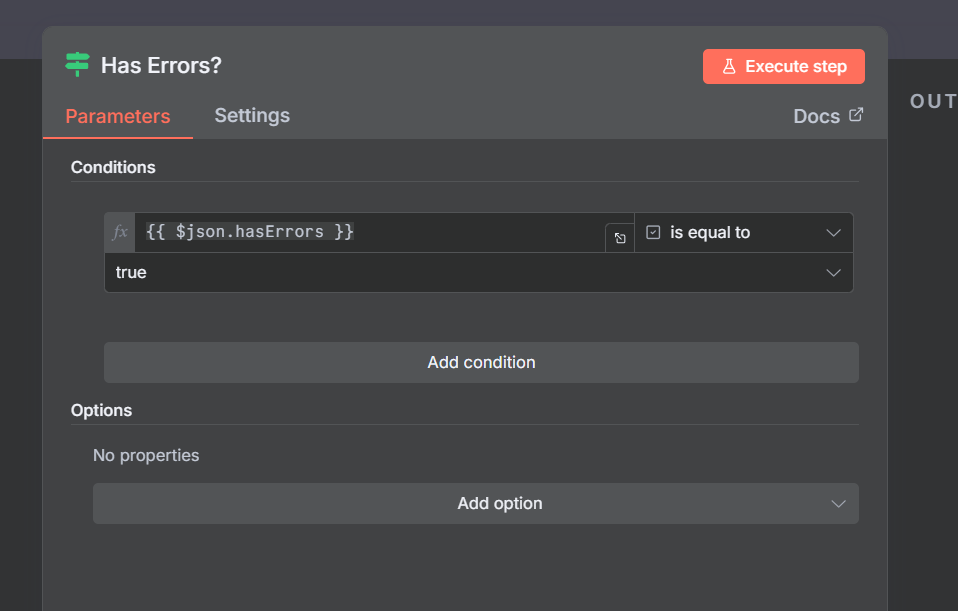
10. Has Errors? (IF Node)
Type: IF
Purpose: Routes to error notification if any API failed, otherwise continues to success path
Condition: {{ $json.hasErrors }} equals true
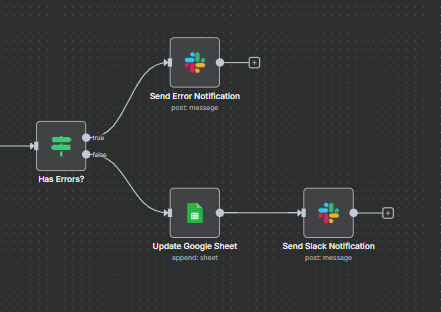
- True branch → Send Error Notification
- False branch → Update Google Sheet
11. Update Google Sheet
Type: Google Sheets
Operation: Append Row
.png)
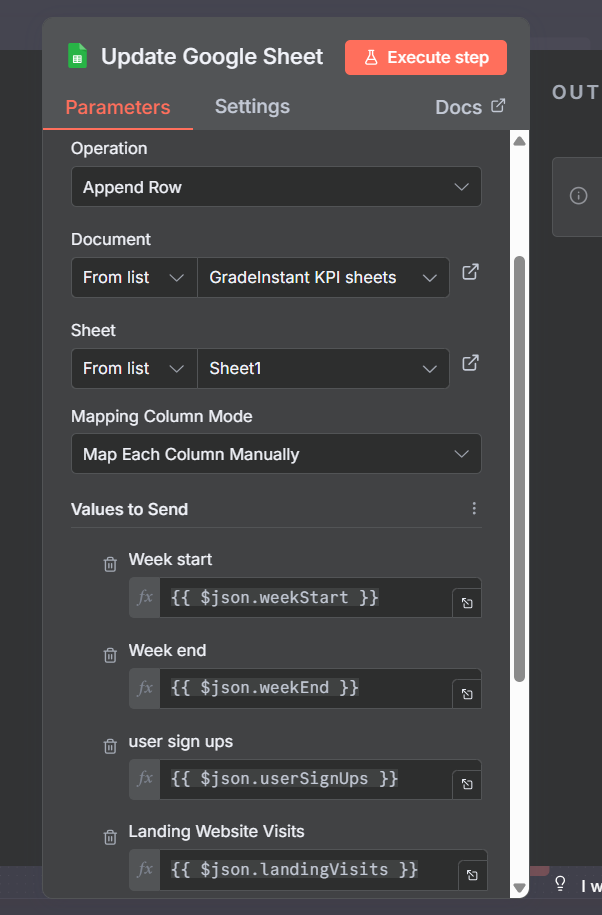
Column Mapping:
- Week start →
{{ $json.weekStart }} - Week end →
{{ $json.weekEnd }} - User sign ups →
{{ $json.userSignUps }} - Landing Website Visits →
{{ $json.landingVisits }} - Webapp visits →
{{ $json.webappVisits }}
12. Send Slack Notification
Type: Slack
Operation: Send Message
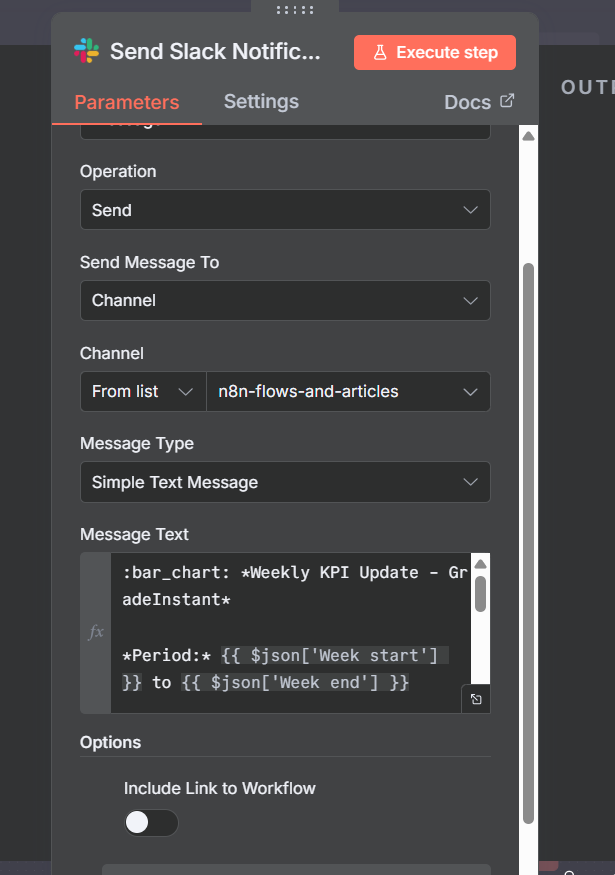
Message Template:
:bar_chart: *Weekly KPI Update*

*Period:* {{ $json.weekStart }} to {{ $json.weekEnd }}

:busts_in_silhouette: *User Sign Ups:* {{ $json.userSignUps }}
:globe_with_meridians: *Landing Visits:* {{ $json.landingVisits }}
:computer: *Webapp Visits:* {{ $json.webappVisits }}
13. Send Error Notification
Type: Slack
Purpose: Alerts the team when any data source fails, including the specific error message
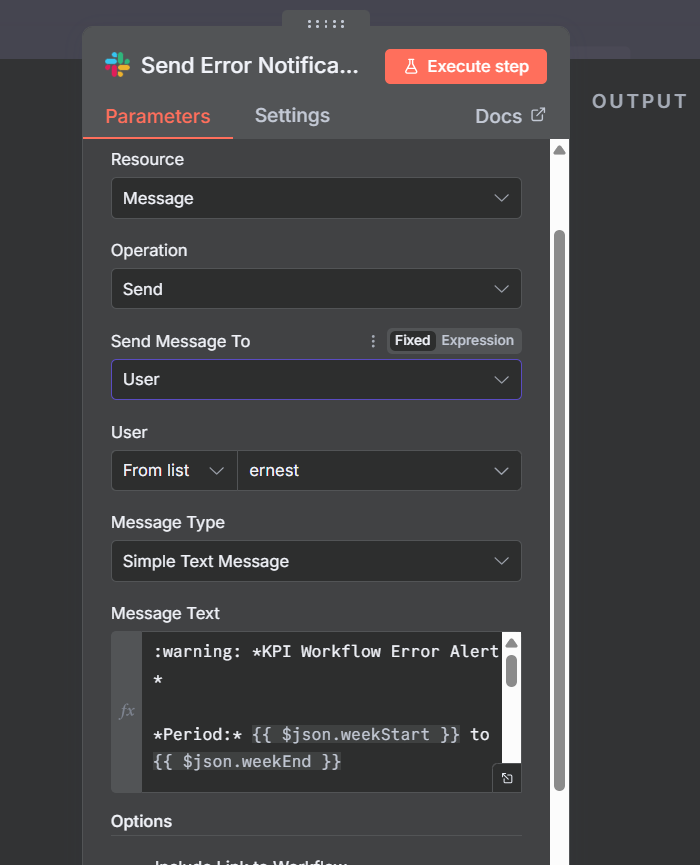
Message Template:
:warning: *KPI Workflow Error Alert*

Some data sources failed:
{{ $json.errors.join('\n') }}
Importing the Workflow
Download the attached JSON file and import it into n8n:
- In n8n, go to Workflows → Import from File
- Select the JSON file
- Update the credentials and configuration as described below
After importing, update:
- GA4 Property ID in the Fetch GA4 node URL
- Google Service Account credential for the GA4 node
- Amplitude credential for both Amplitude nodes
- Google Sheets credential and select your spreadsheet
- Slack credential and select the recipient/channel
- Event names if yours differ from 'UserSignedUp'
Troubleshooting
GA4 returns 403 Forbidden
Make sure you've added the service account email as a Viewer in GA4 Property Access Management.
Amplitude returns 401 Unauthorized
Check that your API Key is the username and Secret Key is the password in your HTTP Basic Auth credential.
OAuth token keeps expiring
Switch from OAuth to Service Account authentication for GA4. Service Account tokens don't expire.
Amplitude returns empty data
Verify your event names match exactly what's in Amplitude (case-sensitive). Check that you're using the correct data center URL (US vs EU).
Results
After deploying this workflow:
- Time saved: ~4 hours per month of manual work eliminated
- Reliability: Reports arrive every Monday at exactly 8 AM
- Accuracy: No more copy-paste errors
- Visibility: Historical data tracked automatically
- Error alerts: Immediate notifications with specific error details when something breaks